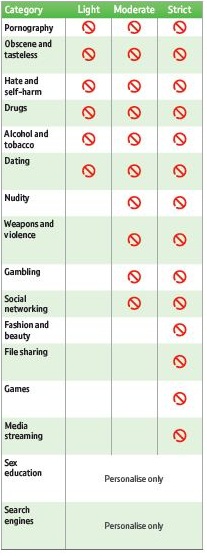
These are the three predefined filter levels on BT Parental Controls (Light, Moderate and Strict). You can customise your filters to suit your needs but the screen below shows which categories are blocked for each of the predefined filter levels.
- Log in to My BT with your BT ID
- Scroll down to and click on the Manage your extras button followed by clicking on Manage BT Parental Controls
- Select 'Manage Settings' under BT Parental Controls and choose the Change filter levels tab
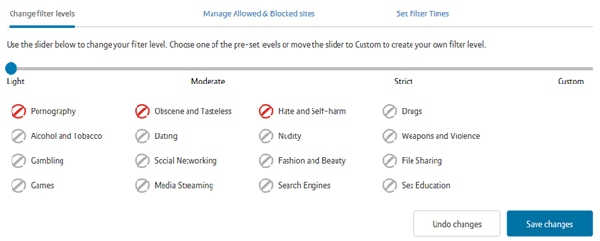
- You can select from the three pre-defined filter levels - 'Strict', 'Moderate' and 'Light'. Just move the slider to the filter level you want and select Save changes. You'll see a list of what categories will be blocked by that filter setting
- You can then customise this filter level even further by moving the slider to Custom. Just select or de-select any blocking category you want to change
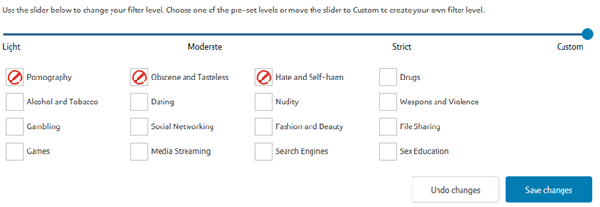
- To make the changes, click Save Changes at the bottom of the section
- Your new filter level will be active within 10 minutes
This table shows the different blocking categories you can select within Parental Controls and what types of websites they block. For example, online gambling sites are for adults over the age of 18. BT Parental Controls allow you to restrict and block access to gambling sites. You just need to change your filter level to block the gambling category.
| Blocking category | Description |
|---|---|
| Pornography | This category will block sites that contain explicit sexual content. This includes adult products such as sex toys and videos, adult and escort services, strip clubs, erotic stories and descriptions of sexual acts. |
| Drugs | This category will block sites that give information on illegal drugs or misuse of prescription drugs. |
| Alcohol & Tobacco | This category will block sites that promote or sell alcohol or tobacco related products or services. |
| Hate and Self-harm | This category will block sites that promote or encourage self-harm or self-injury. The category also includes sites that encourage the oppression of people or groups based on their race, religion, gender, age, disability, sexual orientation or nationality. |
| Nudity | This category will block sites that contain full or partial nudity. The content blocked will not necessarily be of a sexual nature. This will include sites where the main purpose is to advertise or sell lingerie, intimate apparel, or swimwear. |
| Weapons and Violence | This category will block sites that encourage suicide or depict, sell, review or describe guns and weapons. This could be for sport or sites that contain images or text depicting or advocating physical assault against humans, animals, or institutions. Sites where the content is of a gruesome nature will be blocked. |
| Gambling | This category will block sites that offer or are related to online gambling, lottery, casinos and betting agencies involving chance. |
| Dating | This category will block sites that promote networking for interpersonal relationships such as dating and marriage. This includes sites used for match-making, online dating, spousal introduction and escort services. |
| Social Networking | This category will block social networking sites used for friendship, dating, professional reasons and other various topics. It will also block sites used for online chat, like chat rooms and instant messenger sites. |
| File Sharing | This category will block sites used to illegally distribute software or copyrighted materials such as movies, music, software cracks, illicit serial numbers, illegal license key generators and sites used as a direct exchange of files between users. |
| Games | This category will block sites relating to computer games, online games or other games. This also includes sites that provide information about game producers, or how to obtain cheat codes. This will include blocking access to online multiplayer gaming servers and online app stores. |
| Media Streaming | This category will block sites that deliver streaming content, such as Internet radio, Internet TV or music. It will also block sites that provide live or archived media downloads. Fan sites or an official site run by musicians, bands, or record labels will also be blocked. |
| Obscene and Tasteless | This category will block sites that may be offensive or tasteless such as bathroom humour, or gruesome or even frightening content such as shocking depictions of blood or wounds, or cruel treatment of animals. It also blocks sites which offer advice on how to commit illegal or criminal activities, or to avoid detection. These can include how to commit murder, build bombs, pick locks, etc. Sites with information about illegal manipulation of electronic devices, hacking, fraud and illegal distribution of software will be blocked. |
| Fashion and Beauty | This category will block sites that relate to the advertising and discussion of fashion, jewellery, glamour, beauty, modelling, cosmetics or related products or services. This will also include sites where the main content contains fashion and beauty product reviews, comparisons, and general consumer information. |
| Homework | ‘Homework time’ provides an additional layer of protection over and above day-to-day filters. This can be set to turn off/on according to the times customers specify. Homework time will block social networking, gaming and cheating sites in addition to the usual controls. |
| Search Engines and Portals | ‘Search Engines and Portals’ will block sites where the main purpose is to enable the searching of the web, newsgroups, images, directories and other online content. Includes portal and directory sites such as white/yellow pages. |
| Sex Education | This category is intended to prevent very young children from being exposed to sites that have a significant focus on subjects that might come up in a sex education programme. Parents should carefully consider the possible adverse effects from denying children of an appropriate age access to information on these issues. |
Blocking websites
Adding websites to your blocked list means that any device connecting to your Hub will not be able to access the website, even if the category it's listed under is not blocked. For example, if you choose to block the Facebook website and have not selected to block social networking sites, any device connecting to your BT Hub will not be able to access the Facebook website; however other social networking sites will still remain accessible.
To block a site:
- Log in to My BT with your BT ID.
- Scroll down to and click on the Manage your extras button, followed by clicking on Manage BT Parental Controls.
- Select Manage Settings under BT Parental Controls and choose the Manage allowed and blocked sites tab.
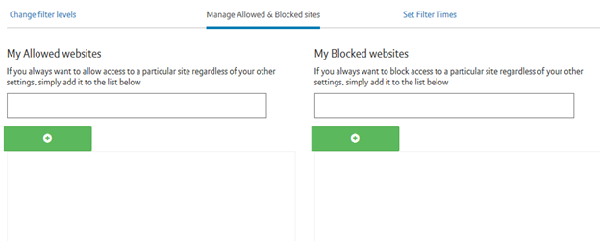
- In the box under 'My blocked websites', type the address of the website you wish to block.
- Once entered, click the blue button underneath to add the website to your blocked list.
- You'll then receive a confirmation message, and the address will be shown in your blocked list.
- It can take up to 10 minutes for the site to be blocked.
- To remove a blocked website from your list, click the X next to it. You'll see a message confirming that it has been removed.
Allowing blocked websites
Adding websites to your allowed list ensures that anyone connecting to your Hub can always access them, even when the category they're listed under is blocked. For example, if you choose to allow the national lottery website and have blocked gambling content, any device connecting to your Hub will be able to view the national lottery pages; all other gambling sites would remain blocked.
To allow a site:
- Log in to My BT with your BT ID.
- Scroll down to and click on the Manage your extras button followed by clicking on Manage BT Parental Controls.
- Select Manage Settings under BT Parental Controls and choose the Manage allowed and blocked sites tab.
- In the box under 'My allowed websites', type the address of the website you wish to allow. Sites can be accessed via multiple addresses.
- Once entered, click the blue button underneath to add the website to your allowed list.
- You'll then receive a confirmation message, and the address will be shown in your allowed list.
- To remove a website from your list, click the X next to it. You'll see a message confirming that it has been removed.
How to block YouTube with BT Parental Controls
Nowadays, it’s becoming even harder to keep children away from harmful content on platforms like YouTube. However, with BT Parental Controls there’s a way to limit access to YouTube across apps, smart TVs and websites. Follow these easy steps to set up BT Parental Controls to block YouTube:
- Login to My BT account using your BT ID at https://home.bt.com/login/ >
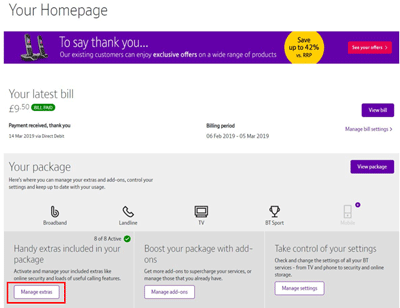
- Scroll down to the bottom of the "Your Homepage" and click on Manage extras in the “Handy extras included in your package” panel
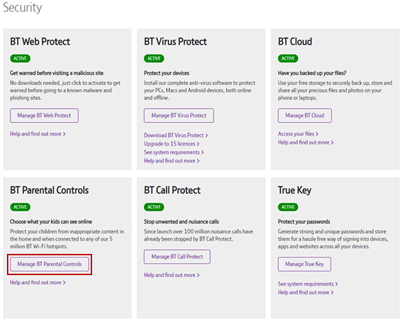
- Click on “Manage BT Parental Controls”. This will open the Settings menu
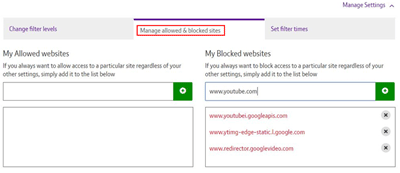
- Open “Manage allowed and blocked sites”. Add each of the following links in the text box under “My Blocked websites” and click the green button
- www.youtubei.googleapis.com
- www.ytimg-edge-static.l.google.com
- www.redirector.googlevideo.com
- www.youtube.com
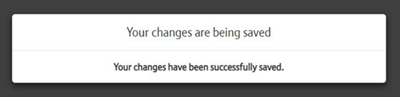
- We will save all changes and apply them across all devices connected to your BT Home broadband. This may take up to two hours
- You may want to limit the time when these filters are being applied. To do this, go to the “Set filter times” menu and customise the time settings. If you set a time, this is when we will turn your Parental Controls on
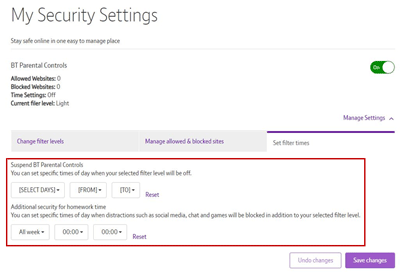
Please note that while we’re doing our best to provide the tools you need to block as much harmful content as possible, given the dynamic nature of many online platforms, we can't guarantee 100% coverage.
About email notifications when you change BT Parental Control settings
You can't turn them off. But it's good for your own security to receive these notifications, in case someone makes changes without your knowledge and has your BT ID. Your BT ID is also used for other BT services, so you don't want it in the wrong hands.
Change the email address for notifications
To change your contact email address, please call 0330 123 4150 and ask one of our advisors to update your contact details.
Unfortunately, we can only send notifications to the one that is set up on your account. But you could set these emails to forward to another address through your email provider.
Overriding a blocked page
There are two simple ways to gain access to a blocked site, either turn off parental controls for one hour or always trust the specific site. You must be the account holder as your BT ID log in details will be required.
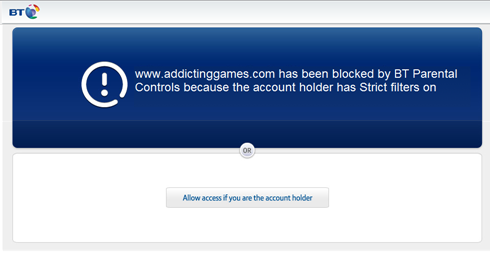
1. Turn off BT Parental Controls for one hour:
- On the blocked page select Allow access if you are the account holder
- Select Turn off BT Parental Controls for one hour and enter your BT ID log in details
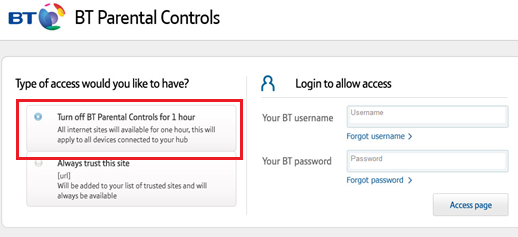
- Once you've entered your BT ID details select the ‘Access page’ link, to access the newly unblocked site
- This will turn off all of your filters for one hour and your network will not be protected from harmful online content during this time. You're unable to turn your filters back on during this hour
- It may take an additional 10 minutes for the filters to come back on during an active browsing session.
2. Override by always trusting the page/site
Always trust this site:
On the blocked page select Allow access if you are the account holder
- Select Always trust this site and enter your BT ID log in details
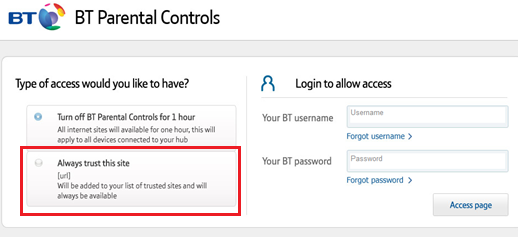
- Once you've entered your BT ID details select the ‘Access page’ link, to permanently unblock the website
- Any device connected to your Hub can always access this site, regardless of the filter settings applied. If you want to block the site again, you can remove it from your allowed list at any time.